How to do a private live stream of your Zoom meetings on digital signage?
If you have lived through 2020, the term 'Zoom' is not all that alien! After all, that is the first platform to rescue us, keeping teams "in touch and running!"
But, private live stream of a Zoom meeting? What might that mean?
This blog digs deep into that and curates simple steps to broadcast any Zoom meeting on a digital signage screen! Read on to find out!
What is private live streaming?
Custom live streaming is the real-time audio or video stream broadcast to target audiences. This sort of presentation does away with the need for a meeting link or QR to join a discussion, instead broadcasting the same on a digital screen for broader access.
It provides a secure and convenient way to access information within a private group of viewers, minimizing the risk of unauthorized participation or distribution. Private live streaming lets participants engage in real-time discussions and collaborations, regardless of their time zone.
Why the Pickcel Zoom app?
The Pickcel Zoom app enables live streaming of Zoom meetings, presentations, and interviews directly onto digital signage screens. The app is tailored to various screen formats and operating systems, offering a responsive design and the capability for collateral streaming. Notably, it allows users to preview content before publication, ensuring quality and accuracy.
In what situations can a private live stream be useful?
Private live streaming on digital signage can be a great way to improve internal communication in corporate offices. Private streaming on digital signage can facilitate new-normal communication, especially in today's hybrid workplaces, where remote workers and office-goers need to constantly collaborate virtually for meetings, events, and town halls.
For instance, a multinational corporation can enable the private streaming of a live CEO talk on the digital displays of all its hundreds of offices globally. This will ensure that only the intended audience— in this case, the employees― are privy to confidential or organization exclusive discussions about revenue, targets, etc., discussed during the meeting.
How to do a private live stream using the Pickcel Zoom app?
While private streaming is easy, private streaming on your office displays can only become challenging if your digital signage software has the capabilities
Pickcel is one of the few platforms that allow the private streaming of Zoom meetings on digital signage screens. This is facilitated through the Zoom widget available in the Pickcel app store.
A quick side note: you must use the paid Zoom account to avail yourself of this feature.
Let's take you through the steps to show how simple it is to start your private live stream on digital screens using Pickcel.
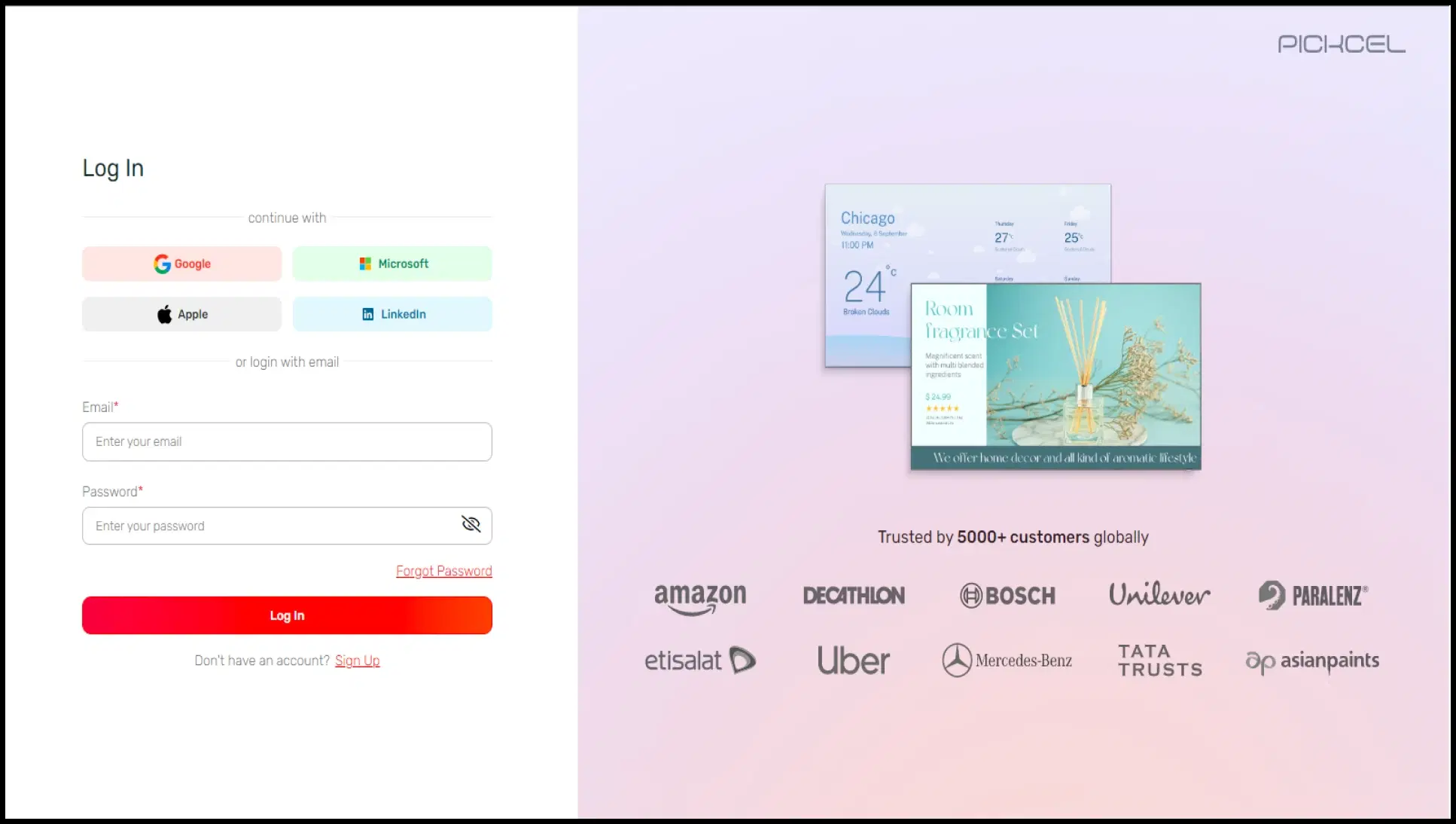
Step 1 - Login to your Pickcel account
To access the Pickcel Zoom widget, you must create a free account. Although Pickcel offers most of its features free for a trial period of 14 days, the Zoom app is a premium app available only to the Pickcel Business Plan users.
Step 2 - Go to the Pickcel Zoom app
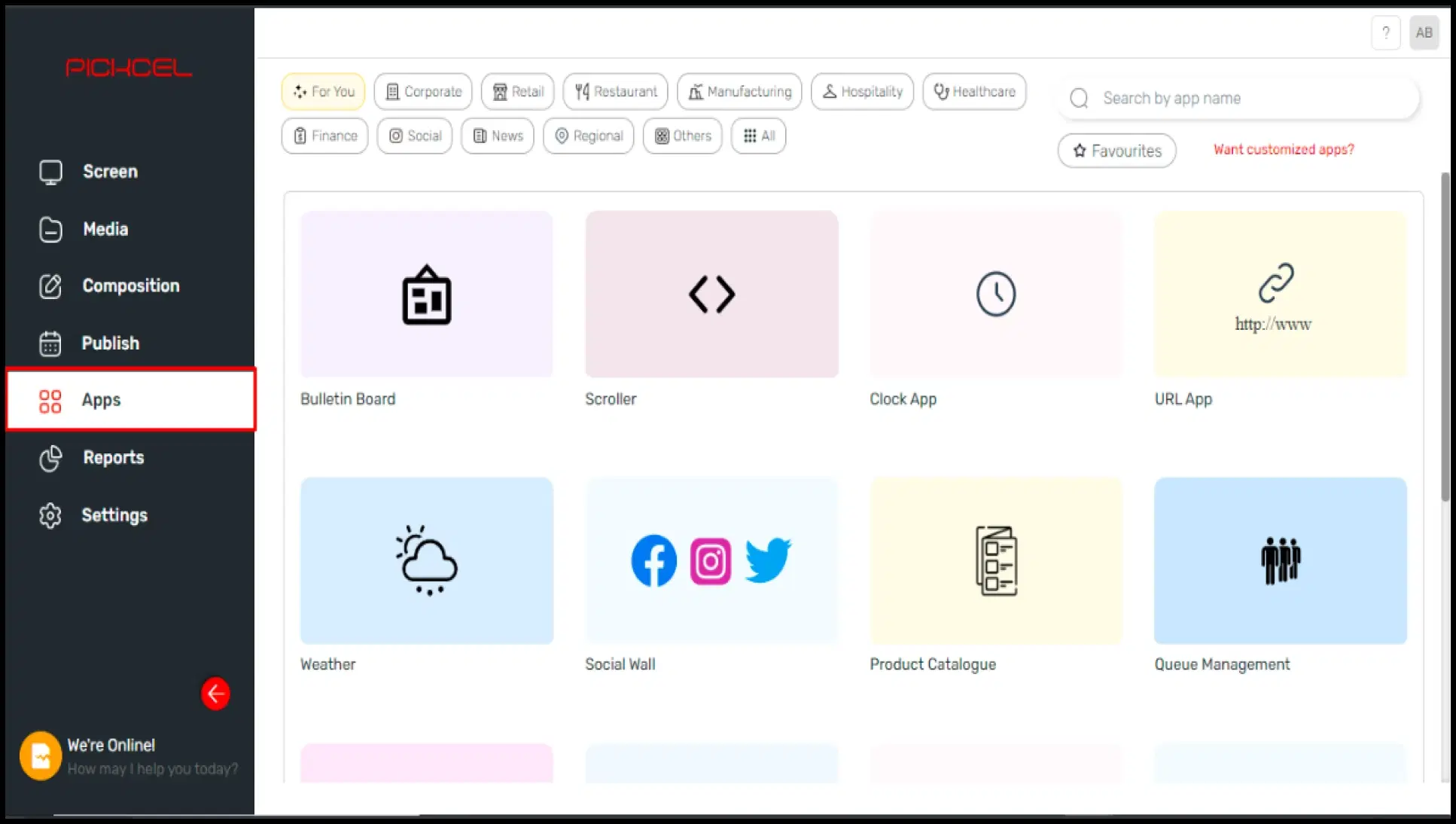
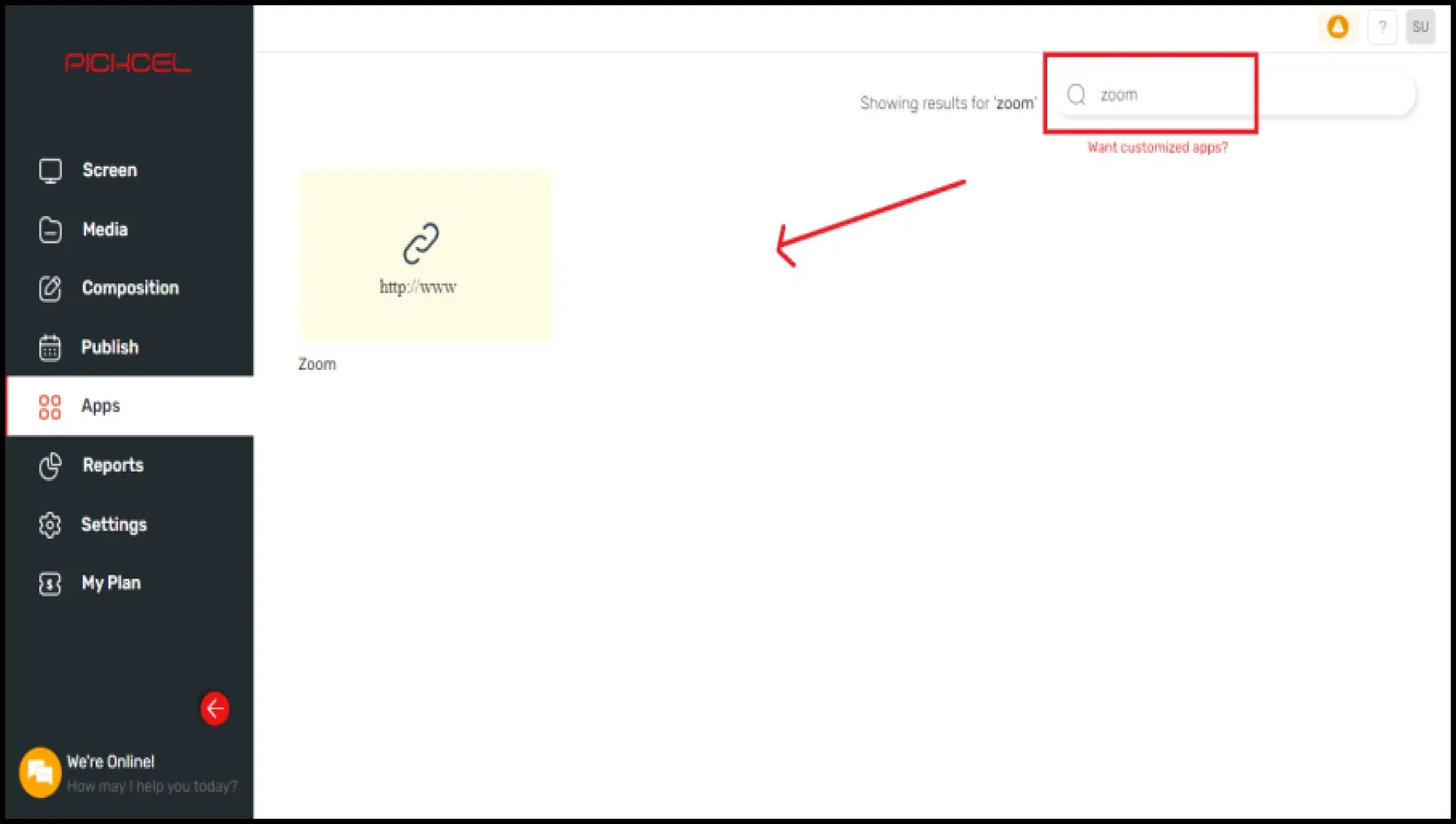
Once logged in to the Pickcel console, go to the Apps module (highlighted in the image) and search for 'Zoom App' in the search field on the top right. Hover over the app thumbnail and click the 'Create App' button!
Step 3 - Set up a private livestream
Enter an app name of your choice. Ensure it does not include spaces or special characters. Once done, click on 'Create Stream Channel.' Yes, you are almost there!
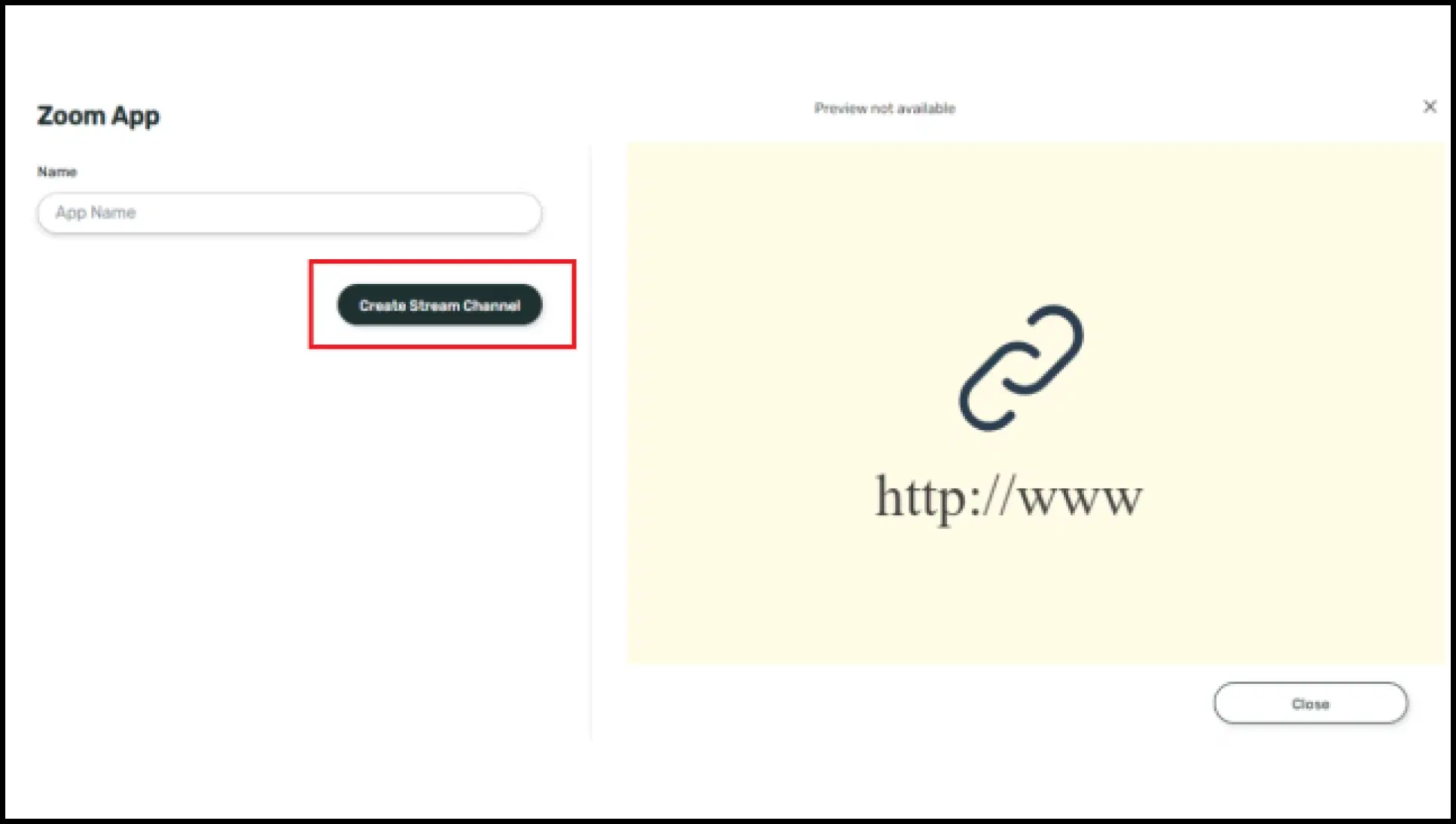
Step 4 - Generate streaming credentials
Input the live streaming meetings' information, such as the URL, streaming key, and page URL. What can these be? Head to steps 5 and 6!
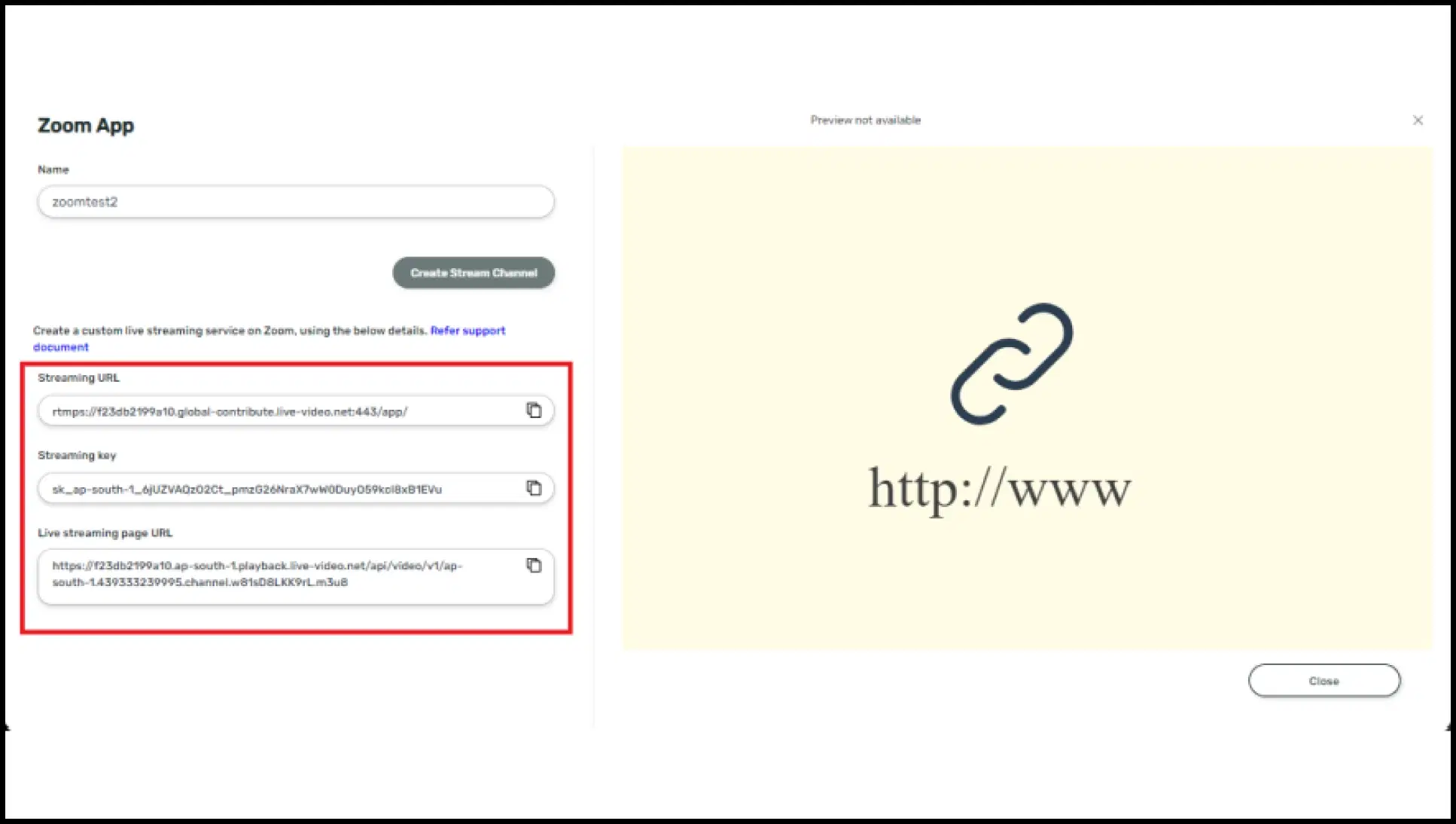
Once the app is ready and the streaming credentials are generated, you will see the configured app in the Media module of the Pickcel console.
Create a composition, and add the Zoom app to it. Next, assign it to the screens where you want to present your live stream. You can assign the composition as Quickplay or schedule it for later. You will see a black screen till the meeting starts and live streaming is configured.
Step 5 - Start your Zoom meeting
To configure live streaming, go to the Zoom meeting (you have to start the meeting) and click on the More option.
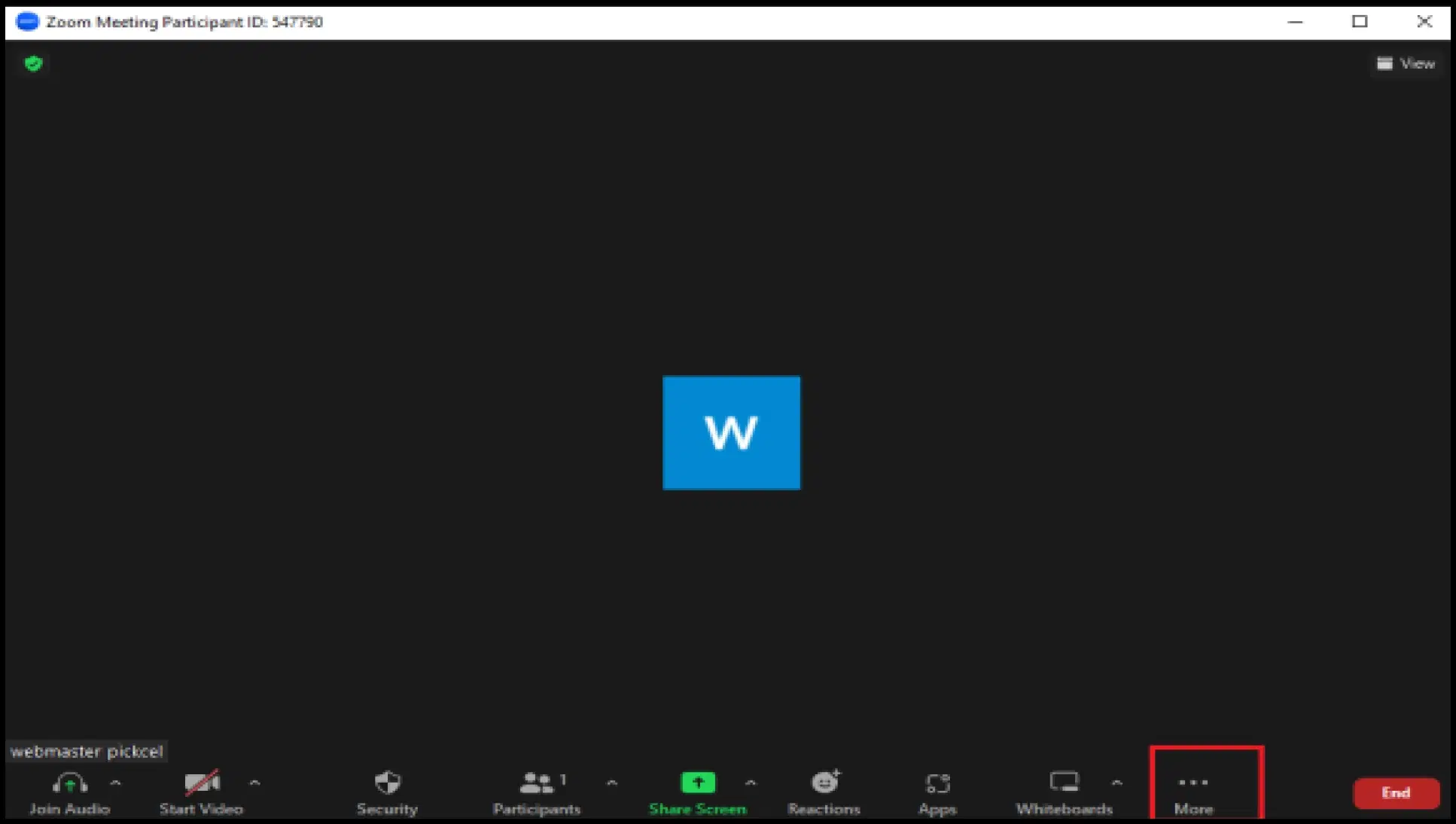
Here you will find an option for Live on Custom Live Streaming Device. Click on that.
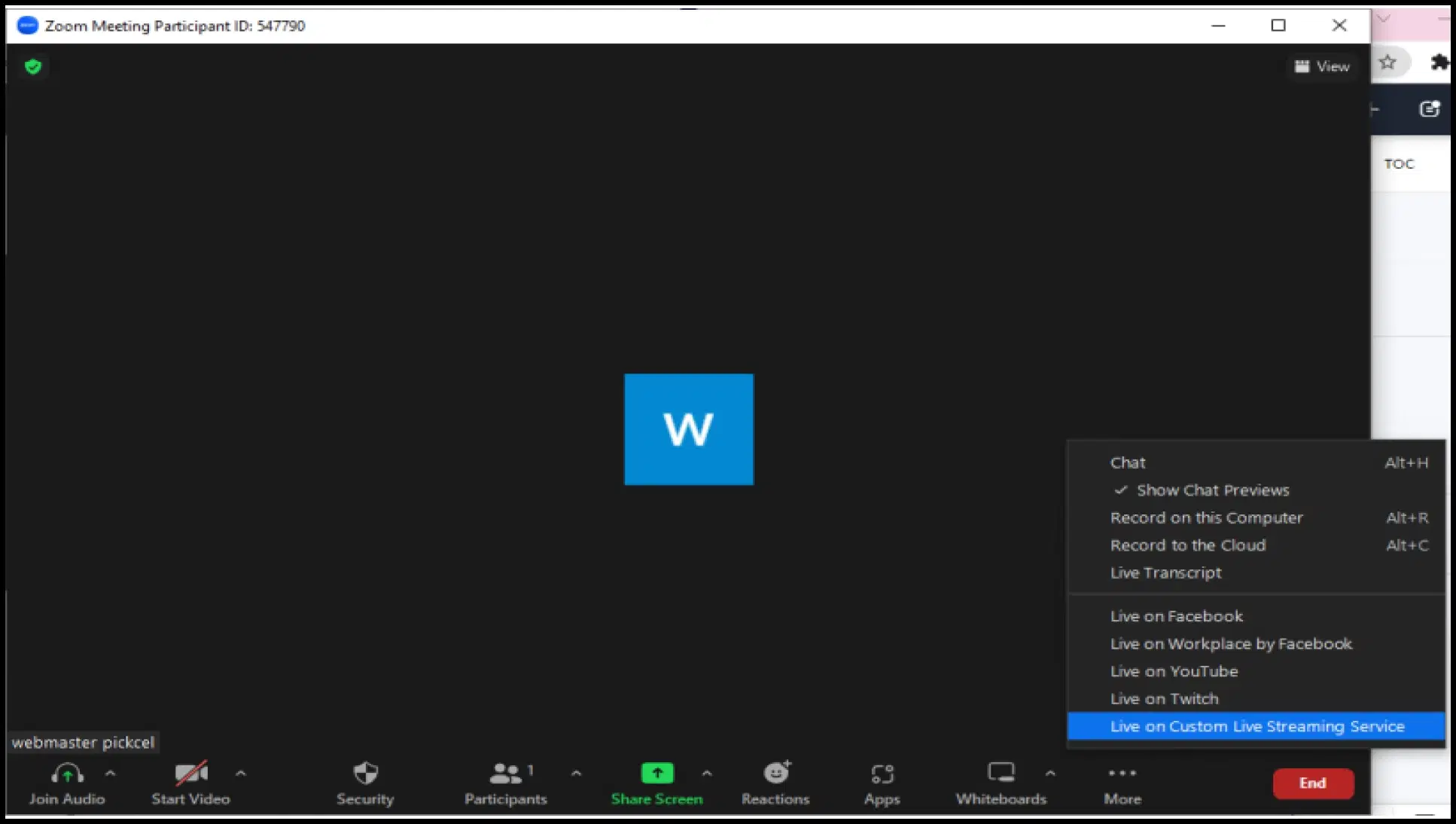
It will open a form where we can enter the credentials we got in Step 4.
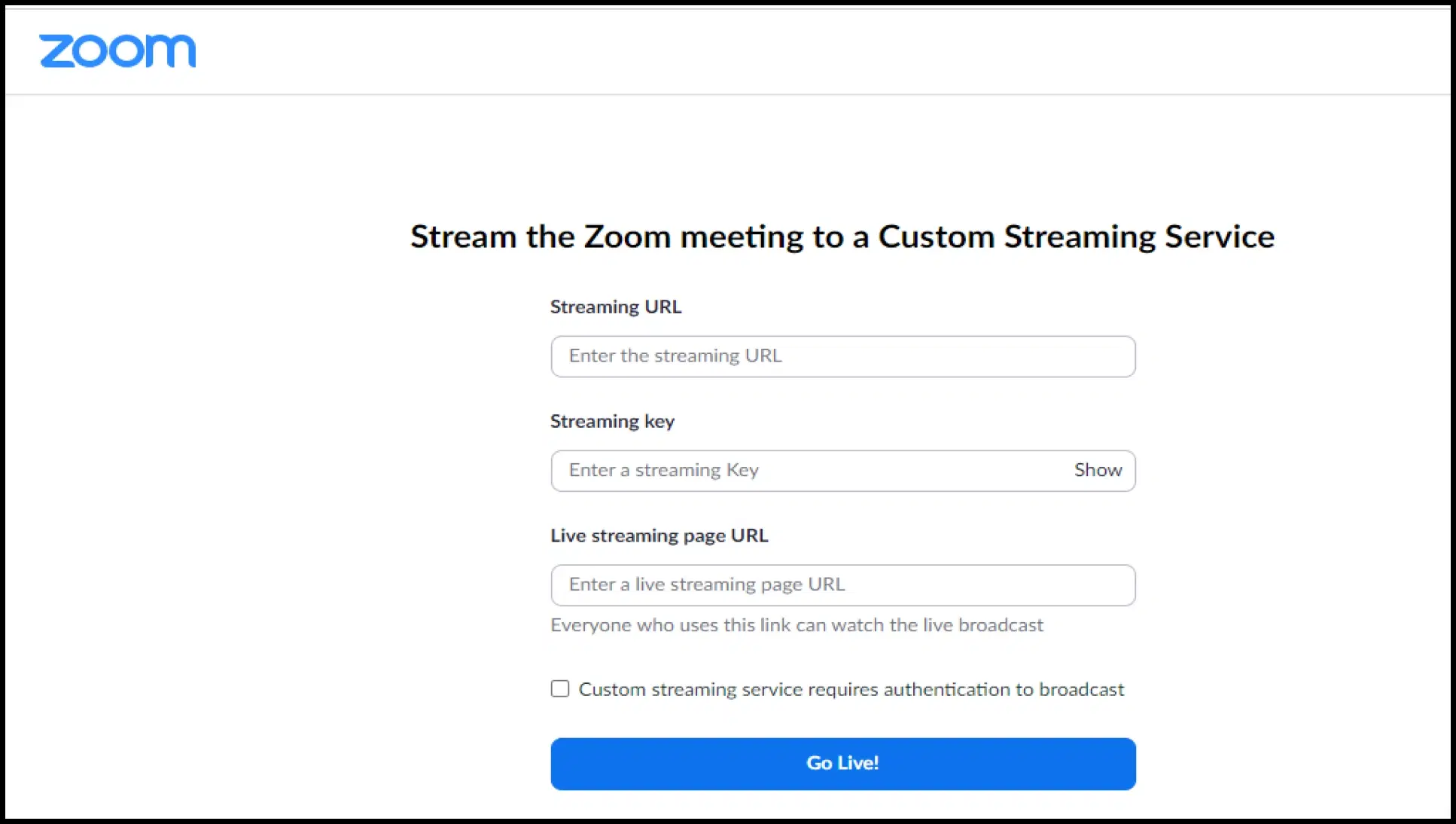
Step 6 - Begin your custom live stream
After entering the details, click on Go Live!
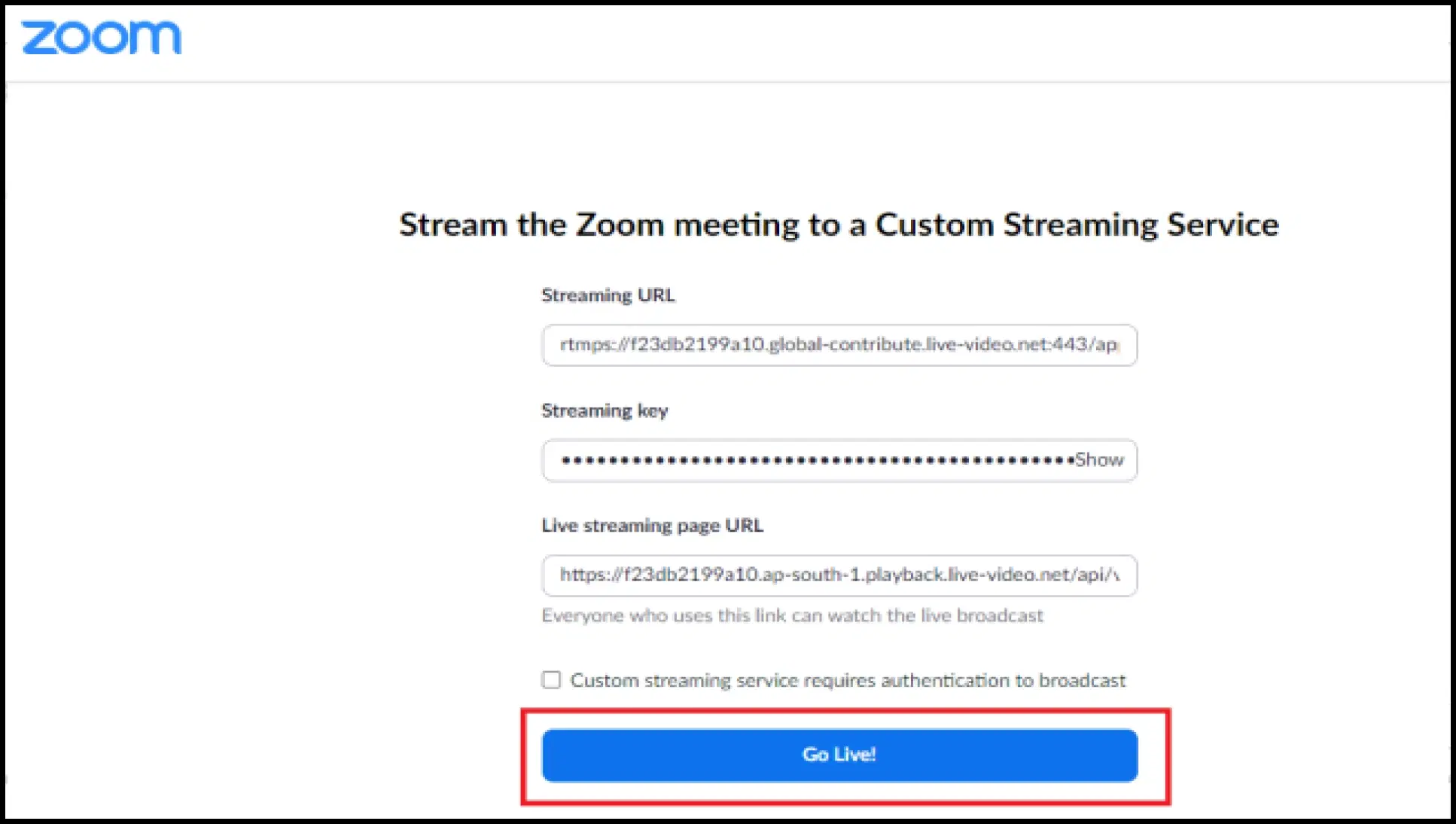
Once done, you will see the below message, and you will start seeing the meeting on screens which are assigned with corresponding compositions: