
How to Set Up Pickcel Digital Signage on Amazon Fire TV Stick?
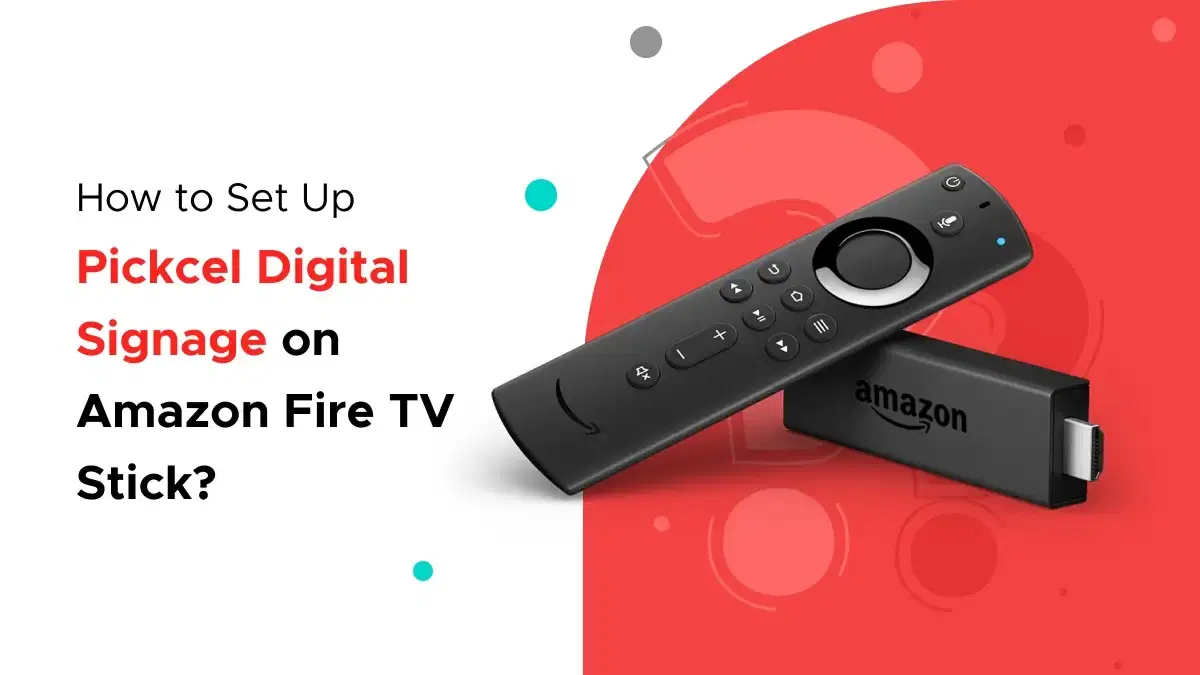
The Amazon Fire TV stick is one of the most popular choices for content streaming devices, especially, if you are trying to convert your TV into digital signage, you can easily do that with the help of Fire TV Stick and the Pickcel digital signage software.
Pre-requisites to get started:
Internet connectivity: Stable and high-speed internet is required for the installation of the Amazon Fire TV Stick and the Pickcel software. Therefore, make sure you have Wi-Fi or Ethernet connectivity.
Amazon account: To set up Amazon Fire Stick, users need to have a registered Amazon account. A free basic account is sufficient to get started; having a Prime membership is not essential.
A. Configuring the Amazon Fire TV Stick with Your TV or Digital Display
Before you install the Pickcel digital signage application on your device, you will have to first make your Amazon Fire TV stick operational. Follow these simple steps:
- Using the USB cable, connect the Fire TV Stick with the power adapter. Plug in the Fire Stick into the HDMI port of your display.
- Switch on your device and select the corresponding HDMI input source on your screen.
- Wait for the Amazon Fire Stick logo to appear on your screen. Once the logo appears, your Alexa remote should start working immediately.
- With the help of your remote, select your preferred language.
- Select your Wi-Fi network. Now, enter the Wi-Fi password using the virtual keyboard on screen and, after that, select 'Continue.
- Next, you will get the option to either log in to your registered Amazon account or create a new account.
- Once you are signed in to your account, you will have some more options to configure your Amazon Fire TV Stick as per your preference:
- Save the Wi-Fi passwords to Amazon: Click 'Yes' if you want to use other Amazon devices. Saving the password will make it faster for you to set-up other amazon devices in the future. If not, then select 'No.'
- Set Parental Controls: Click on 'No parental controls.'
- Signing Up for Amazon Prime: Select 'No Thanks' if you don't want a Prime membership.
- Choose App: Select 'No Thanks.'
Once your Amazon Fire TV Stick has been set up, you will see the Home page on your digital signage.
To learn the detailed process of installing the Amazon Fire TV Stick and what to do if your Amazon Fire Stick remote is not working, check out our Amazon Fire Stick 101 Guide
B. Downloading & Installing the Pickcel app on Amazon Fire TV Stick
The simplest way to search for the Pickcel app is by voice searching (if you have Alexa voice remote.) Simply press and hold the Voice Search button on your remote and speak 'Pickcel' loud and clear. You will be taken to the results.
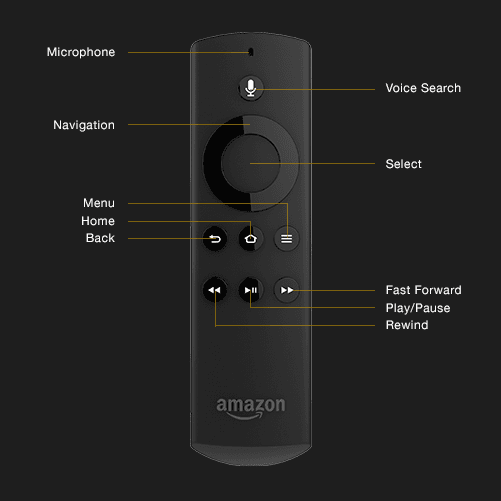
Image credit: Amazon
Alternatively, you can also do a manual search with your remote. For that, follow the steps as below:
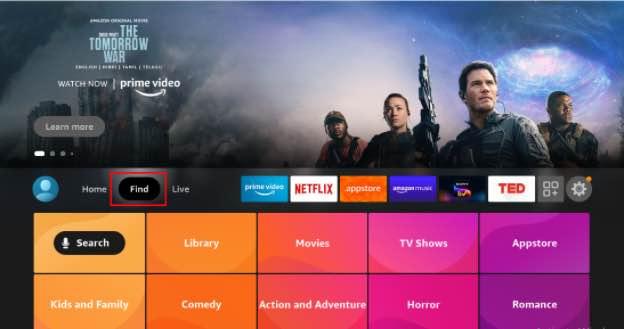
- From the Home page menu, select 'Find.'
- Click on the 'Search' option.
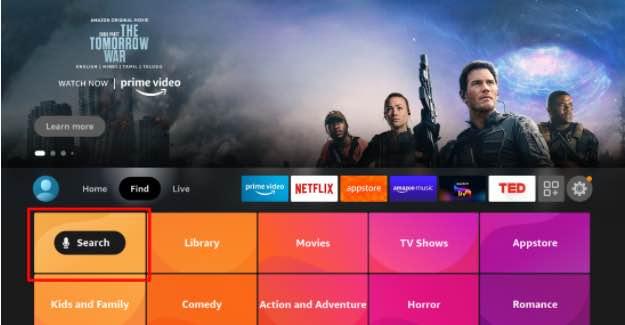
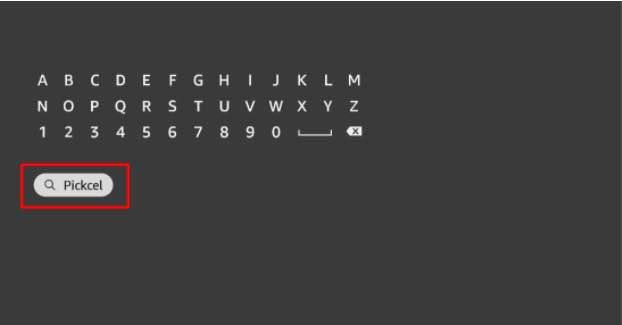
- Using the directional pad, type 'Pickcel' and press the Select button on your remote to select the app.
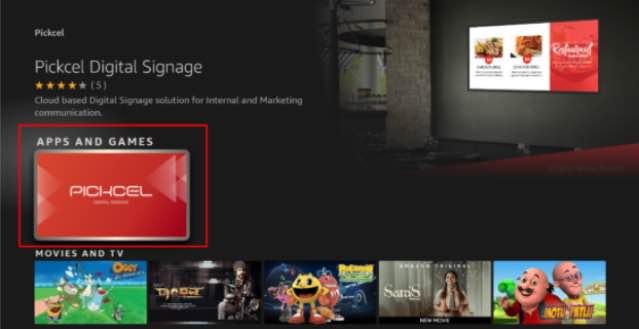
- Select the Pickcel app from the results and press the Select button on your remote.
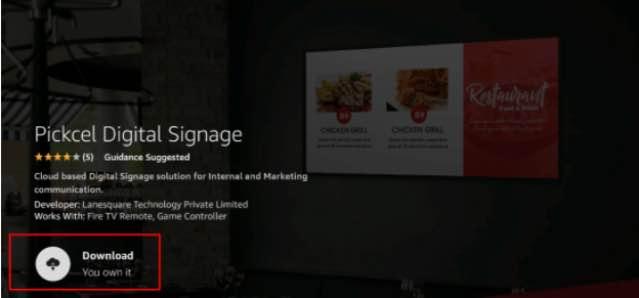
- Select 'Download.'
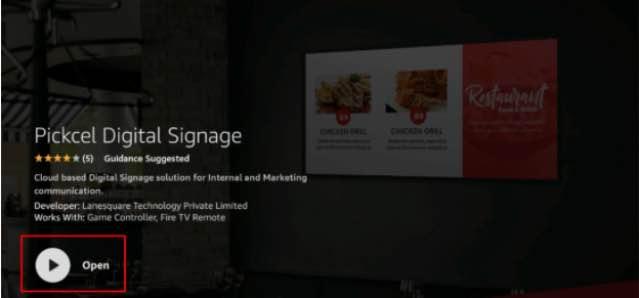
- Wait for the download to finish and select 'Open' to launch the app.
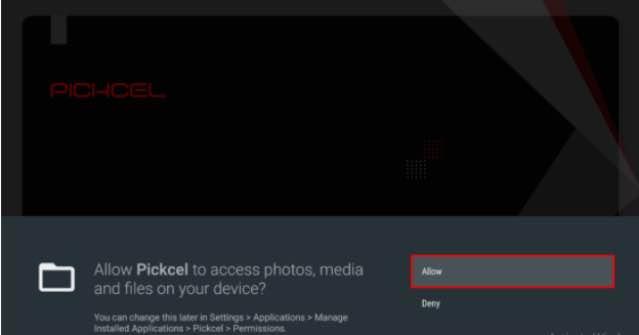
- Select 'Allow' for Pickcel to access the photos, media, and files on your device.
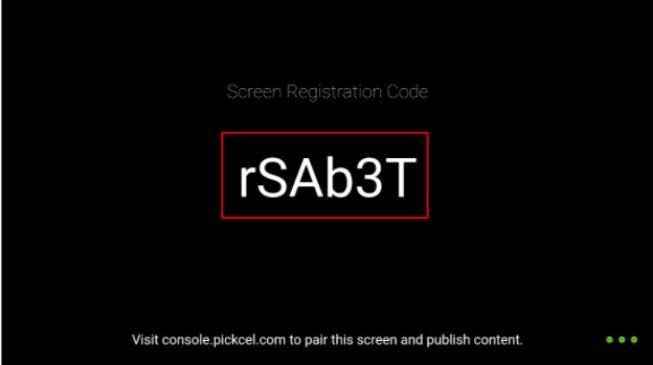
- When the Pickcel app launches, it will show a six-digit unique Screen Registration Code on your screen. You will have to enter this code on your Pickcel console (https://console.pickcel.com/)
- Watch this video to learn how to pair your digital signage with the Pickcel console.