
Desktop Alert Software for Employee Communication: Complete Guide
Learn how desktop alert software on Windows reaches employees instantly for emergencies, IT outages, security incidents, and compliance deadlines — and how it fits into a broader multi-channel communication strategy.
TL;DR
- The Problem
- Critical notifications get buried in email; internal email open rates often sit around 20–25%, which is too low for safety or IT incidents.
- The Solution
- Agent-based desktop alert software that pops up over active windows, bypasses inboxes, and tracks delivery and acknowledgment in real time.
- The Impact
- Up to 97% view rate within 30 seconds and 85–92% acknowledgment for priority alerts when used sparingly and governed well.
- Who Needs This
- IT, HR, and Internal Comms teams at organisations with 200+ desk-based employees who need a reliable emergency and outage channel.
Who Needs This
The Impact
97%
View Rate
within 30 seconds for priority alerts
85–92%
Acknowledgment Rate
for well-governed desktop alerts
60–75%
Lower Communication Spend
when consolidated into a multi-channel platform
See Pickcel's Priority Desktop Alerts in action.
Watch how IT and HR teams use Pickcel to trigger high-priority alerts alongside digital signage, SMS, and Teams channels.
Executive Summary
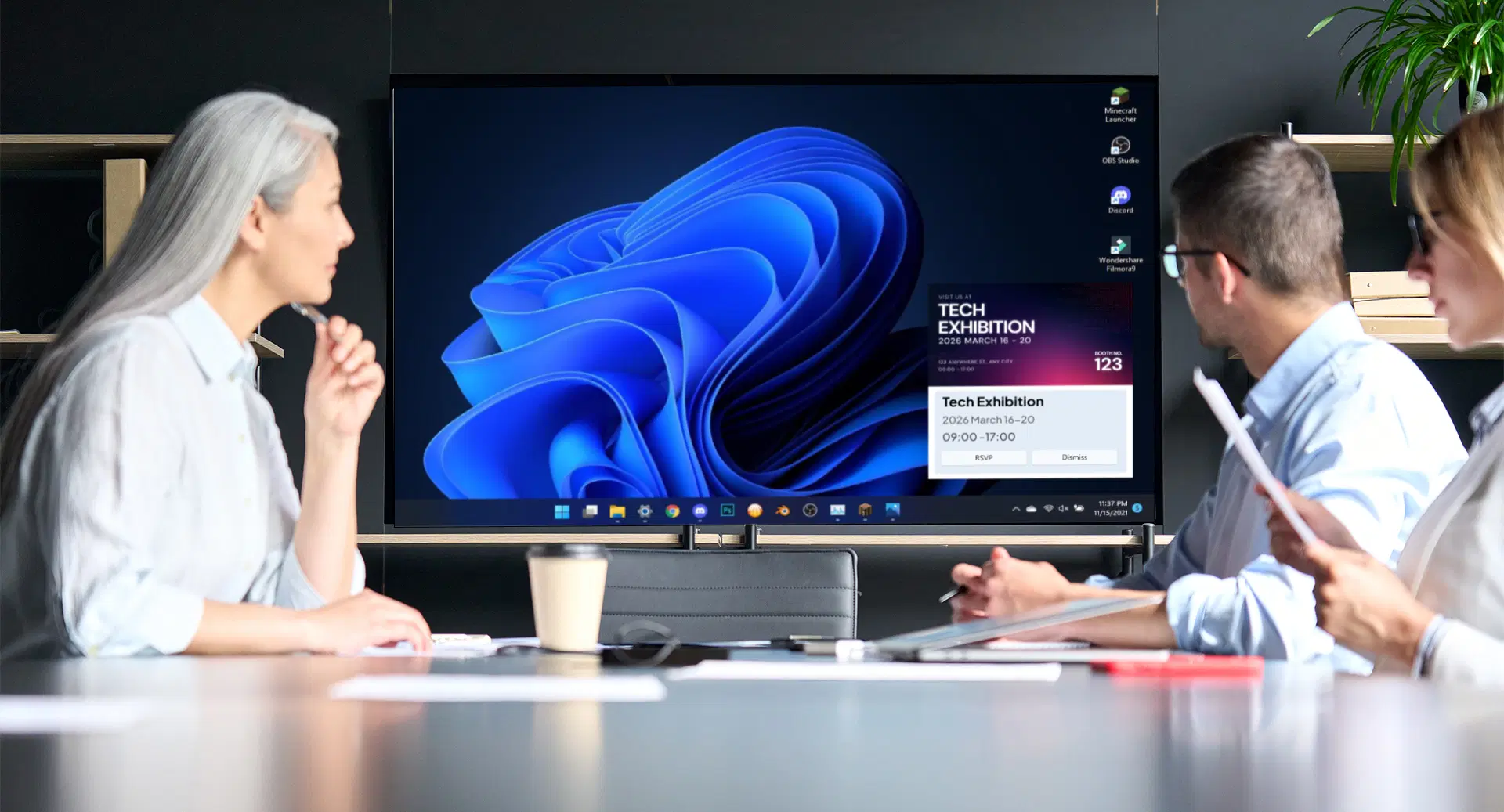
Employees receive dozens of emails daily. A critical IT outage notification, a security breach requiring an immediate password reset, or an emergency evacuation order can sit unread in an inbox for hours — creating real operational and safety risk. Desktop alert software solves this by delivering high-priority messages as pop-up notifications directly onto employee Windows computer screens, interrupting their current workflow to ensure the message is seen instantly.
This power comes with a discipline requirement. Organisations that use desktop alerts sparingly — fewer than five per month — sustain view rates near 97%. Those that overuse them drop to roughly 34% as employees develop alert blindness. This guide gives IT and HR leaders the complete picture: what desktop alert software is, when to use it, how Windows deployment works, which tools to consider, and how Pickcel's Priority Desktop Alerts fit as part of a broader multi-channel communication strategy.
What Is Desktop Alert Software?
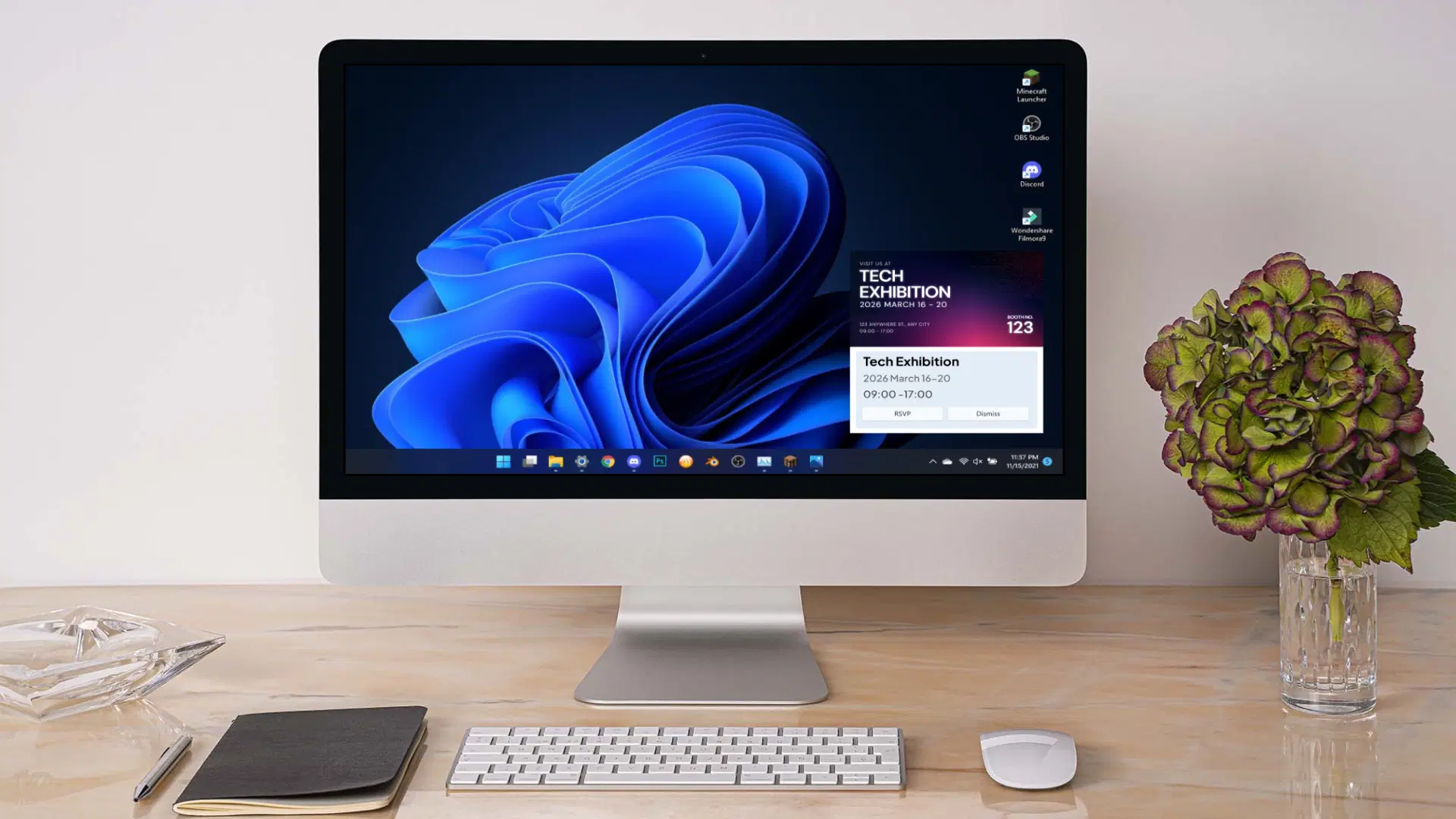
Desktop alert software is a system that displays priority messages as pop-up notifications on employee computer screens, demanding immediate attention by interrupting current activity. Unlike email or chat — which employees check on their own schedule — desktop alerts are push communications that appear regardless of what the employee is doing at that moment.
Key Distinction: Agent-Based vs. Browser-Based
- Agent-based systems: A lightweight software agent is installed on the employee's Windows machine. It can override Do Not Disturb settings, delivers queued alerts even when the browser is closed, and functions as a Windows service that auto-starts on login. This is the most reliable method for mission-critical communications.
- Browser-based systems: No installation required; alerts are delivered through the company web browser or portal. Cross-platform compatible but requires the browser to be open — less reliable for emergencies.
💡 PRO TIP
For emergency and security use cases, always choose an agent-based system deployed to Windows endpoints. Browser-based solutions are acceptable for operational reminders and compliance nudges — but not for communications where every employee must see the message within seconds.
Pickcel's Priority Desktop Alerts use an agent-based architecture on Windows (Windows 10 and Windows 11), deployed via Group Policy (GPO) or Microsoft Intune/SCCM — fitting directly into your existing endpoint management workflow.
When to Use Desktop Alerts vs. Other Channels
Not every message deserves a desktop alert. Used incorrectly, they erode the trust and urgency that makes them effective. The following priority framework defines appropriate usage.
Desktop Alert Priority Framework
| Priority | Channel | Use Cases | Max Frequency |
|---|---|---|---|
| P1 — Emergency / Critical | Desktop Alert | Fire evacuation, active threat, gas leak, security breach | <5 per year |
| P2 — Urgent | SMS / Mobile Push | IT outages (subset), facility closures, critical deadlines | <2 per month |
| P3 — Important | Email + Digital Signage | Policy updates, benefits reminders, training deadlines | Weekly |
| P4 — Informational | Email Only | Company news, general announcements, recognition | Daily / as needed |
Decision Tree: Should You Send a Desktop Alert?
- Does this require employee action within 30 minutes? → No = use email or signage.
- Does a delay in seeing this create measurable harm? → No = use email or SMS.
- Is this relevant to 25%+ of your employees? → No = use targeted SMS or phone calls.
- Can this wait until business hours? → Yes = schedule the alert for morning; No = send immediately.
Four Critical Use Cases for Desktop Alert Software
Use Case 1: Emergency Evacuations
A fire alarm activation or chemical spill requires every employee in the affected area to act immediately. Agent-based Windows desktop alert software can trigger a full-screen takeover — with no dismiss button — within seconds of the alarm through building management system (BMS) integration. Expected view rate: 100% for all logged-in employees.
Combine desktop alerts with digital signage emergency alerts on lobby and corridor screens for comprehensive building-wide coverage. Effective emergency messages are under 30 words, use bold text for the action phrase, specify the location, and direct employees to a single assembly point.
Building 3 — Exit Immediately
Proceed to Assembly Point Alpha.
Further updates to follow. Follow floor wardens and do not use elevators.
Use Case 2: IT System Outages
When your ERP, email server, or network goes down, employees need to know immediately — before they spend 30 minutes assuming the problem is on their end. Desktop alerts for IT outages should include: the affected system name, estimated restoration time, any available workaround, and a link to a live status page.
Unlike emergency alerts, IT outage notifications should include a dismiss button so employees can acknowledge and return to their workflow. Target delivery only to users of the affected system — not the entire organisation.
[System Name] is currently unavailable
Estimated restoration: [Time]
Alternative: [Workaround if applicable]
Help Desk: [Contact]
Use Case 3: Security Incidents
A phishing attack or credential compromise requires immediate action. Desktop alert software with acknowledgment tracking is essential here: you need to know who changed their password and who hasn't — and trigger automated escalation (such as manager notification or SMS reminder) to employees who don't acknowledge within a defined window. Expected acknowledgment rate for well-designed security alerts: around 92% within four hours.
Credential compromise detected
Required action: Change your password now
Use the secure password reset link below. Do not reuse your old password.
Use Case 4: Compliance Deadlines
For mandatory training deadlines, certification renewals, or regulatory reporting, desktop alerts can be scheduled for the morning of the deadline — targeted only to employees who have not yet completed the action, via LMS or HRIS integration. This drives completion rates of 85–90% before the deadline.
KEY INSIGHT
The most effective compliance alerts include a direct action link (for example "Complete training now") and a snooze option (for example "Remind me in 2 hours") — not just an acknowledgment button. Giving employees a choice between "now" and "later" reduces friction and measurably increases completion rates compared to acknowledge-only designs.
See how IT and HR teams run multi-channel alerts with Pickcel.
Explore real deployments of Priority Desktop Alerts alongside digital signage, SMS, and Teams.
Preventing Alert Fatigue: The Governance Framework
Alert fatigue is the single greatest threat to the effectiveness of your desktop alert programme. Research shows that organisations sending more than 10 desktop alerts per month see average view rates drop to around 34% — compared to 97% for organisations sending fewer than 5. Each additional alert per month reduces effectiveness by approximately 6%.
Employee response degrades rapidly even within a single day:
- First alert: 97% view rate within 30 seconds
- Second alert (same day): 84% view rate within 30 seconds
- Third alert (same day): 61% view rate within 30 seconds
A governance framework prevents overuse. Here is a practical structure to implement.
Establish Authorization Levels
- P1 (Emergency) alerts: Safety officers, facility managers, IT directors — pre-approved templates, no approval needed at the time of the incident.
- P2 (Urgent) alerts: Department heads with CIO or CHRO approval required before sending.
- P3 (Important) messages: Redirect to email or digital signage — desktop alerts not permitted.
Set Frequency Limits
- Maximum one desktop alert per employee per week (except true emergencies).
- Maximum five P1 alerts facility-wide per year.
- Department-specific alerts should not be used to bypass company-wide limits — they need their own thresholds.
Apply Message Quality Standards
- Maximum 50 words per alert — desktop alerts are not emails.
- Single topic per alert — no bundled reminders.
- Clear required action stated upfront (if any).
- No ALL CAPS except for critical safety keywords.
Conduct Post-Alert Reviews
After every alert, ask: Was desktop the right channel? Could email or digital signage have served this message? What were the view and acknowledgment rates? Collect employee feedback quarterly on alert appropriateness.
⚠️ WARNING
Never use desktop alerts to compensate for a broken email or intranet strategy. If you find yourself reaching for the alert tool more than once a week, the root problem is your channel mix — not a communication frequency issue. Review your internal communication templates and strategy first.
Windows Deployment: Technical Requirements
Pickcel's Priority Desktop Alert agent is designed for Windows-first enterprise environments. Here is what you need to know before deployment.
Windows System Requirements
- Supported OS: Windows 10 (version 1909+) and Windows 11.
- Agent footprint: lightweight — under tens of MB for disk and RAM usage.
- Startup behaviour: agent runs as a Windows service, auto-starts on user login — no manual launch required.
- Local admin rights required for initial installation.
- Network requirement: outbound HTTPS (port 443) to Pickcel cloud for alert delivery.
Deployment via Endpoint Management
- Group Policy (GPO): Package the agent as an MSI and deploy via GPO to target OUs (by department, floor, or building).
- Microsoft Intune: Deploy as a Win32 app to Entra ID–joined devices; supports both user- and device-targeted policies.
- SCCM / Microsoft Endpoint Configuration Manager: Deploy via SCCM application package for hybrid or on-premises management.
VDI on Windows
In Citrix, VMware Horizon, and Azure Virtual Desktop environments, the agent is installed on the VDI golden image so alerts appear within the user's remote session. Non-persistent environments require AD integration so users are targeted by identity, not by device.
💡 PRO TIP
In non-persistent VDI environments, always validate that your AD group sync runs on session login — not just nightly. A stale group membership at login time is the most common cause of mis-targeted alerts in VDI deployments.
Acknowledgment Tracking & Delivery Confirmation
Modern desktop alert software provides three levels of tracking that matter for both operational response and compliance audit purposes.
| Tracking Level | What It Measures | Typical Rate |
|---|---|---|
| Delivery Confirmation | Alert transmitted to employee's Windows device. | ~100% for online employees. |
| Display Confirmation | Alert appeared on employee's screen. | 95–98% of online employees. |
| Acknowledgment Confirmation | Employee clicked "OK" or "I Understand". | 85–92% within 10 minutes. |
💰 ROI SNAPSHOT
Organisations that consolidate fragmented emergency notification tools into a unified multi-channel platform often report 60–75% lower total communication spend and 75% less admin time managing alerts — while improving reach and response metrics.
Desktop Alert Software: Feature Comparison (2026)
Pricing shown below is indicative only, based on vendor-published information in 2025–2026. Always verify current rates directly with each vendor.
| Vendor | Windows Support | VDI Support | Acknowledgment Tracking | Price (per user / year) | Best For |
|---|---|---|---|---|---|
| Pickcel | Windows 10/11, GPO / Intune / SCCM. | Citrix, VMware, WVD. | Real-time delivery & acknowledgment dashboard. | $18–24 (multi-channel). | Multi-channel communication — desktop alerts + digital signage + SMS + Teams. |
| DeskAlerts | Windows 10/11. | Citrix, VMware. | Real-time. | $20–30. | Desktop-alert–focused deployments. |
| AlertMedia | Windows. | Limited VDI support. | Basic tracking. | $35–50 (mobile + desktop bundle). | Mobile-first emergency notification programmes. |
| Everbridge (incl. SnapComms) | Windows. | Citrix, VMware. | Advanced tracking. | $45–65. | Enterprise emergency management and mass notification. |
| Singlewire InformaCast | Windows. | Cisco-focused VDI. | Real-time tracking. | $30–45. | Cisco network environments and unified safety systems. |
Where Pickcel stands out: unlike standalone desktop alert tools, Pickcel's Priority Desktop Alerts are part of a unified 8-channel platform — including digital signage screens, desktop screensavers, scrolling tickers, SMS, WhatsApp, Microsoft Teams, and mobile push. One message cascades across all channels simultaneously, reaching employees at their desks, in break rooms, and on the factory floor — from a single dashboard.
Implementation: Phased Windows Rollout
A phased rollout protects your investment and prevents the most common deployment failures. Here is a practical two-phase structure.
Phase 1: Pilot Deployment (50–100 Users, Weeks 1–4)
- Deploy the agent to your IT department via GPO or Intune — the best group to surface technical issues early.
- Confirm Windows 10/11 compatibility and validate agent behaviour under your standard endpoint security stack.
- Run announced test alerts; measure delivery, display, and acknowledgment rates.
- Draft and finalise your alert governance policy before broader rollout — not in the middle of a real incident.
Phase 2: Enterprise-Wide Deployment (Weeks 5–8)
- Expand GPO / Intune deployment to all corporate-managed Windows endpoints in phases by OU or department.
- Brief all employees via email and internal communication templates so they understand that alerts are reserved for genuine emergencies and critical IT issues.
- Run a planned, pre-announced first live test alert to calibrate expectations.
- Monitor dashboard metrics for the first 30 days; adjust thresholds based on observed view and acknowledgment rates.
⚠️ WARNING
The most common implementation mistake is skipping the governance policy until after the first real incident. Establish your authorization levels, frequency limits, and approval workflow during the pilot — not in the middle of a security breach.
Desktop Alerts Work Best as Part of a Multi-Channel Strategy
For teams that need this full channel stack managed in one place, Pickcel's employee communication app with desktop alerts delivers desktop alerts, ambient signage, screensavers, and scrolling tickers from one dashboard, with centralized scheduling and delivery confirmation across every channel.
Desktop alert software delivers unmatched immediacy for critical employee communications. A 97% view rate within 30 seconds is something no email tool can match. But that power is precisely why governance matters: overuse collapses effectiveness and trains employees to dismiss the tool when it matters most.
The organisations that get this right treat desktop alerts as the top tier of a deliberate, multi-channel communication hierarchy — reserved for emergencies, critical IT outages, security incidents, and compliance deadlines — and pair them with digital signage software, screensavers, SMS, Teams, and mobile push to create a communication safety net that reaches every employee, regardless of where they are.
Frequently Asked Questions
Still have questions?
Our team is here to help with anything not covered above.


Ready to add Priority Desktop Alerts to Pickcel's 8-channel platform?
Deliver emergencies, IT outages, and compliance alerts alongside digital signage, SMS, Teams, and more — from one unified dashboard.